-
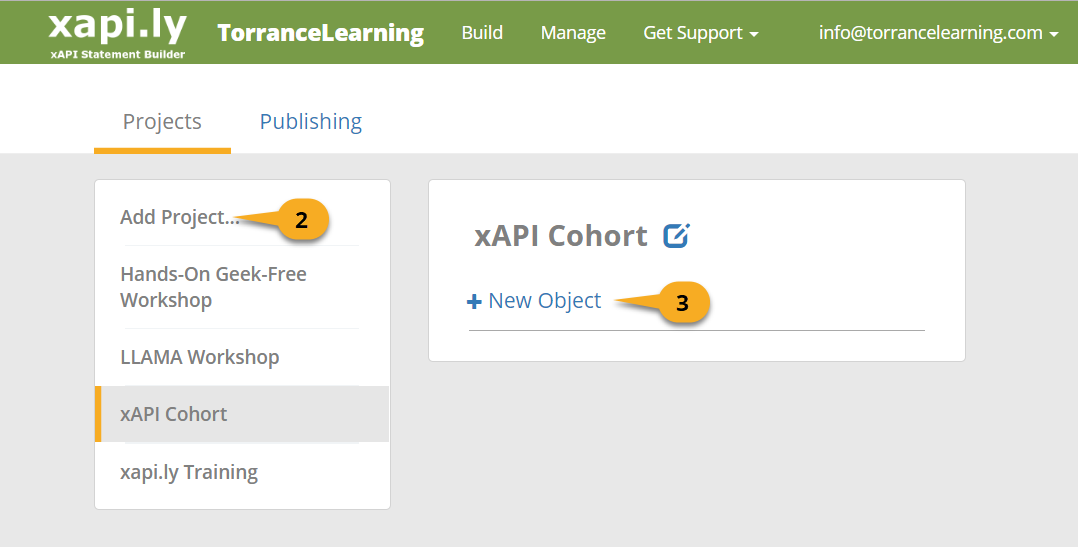
Click + New Statement to create a statement for this object.

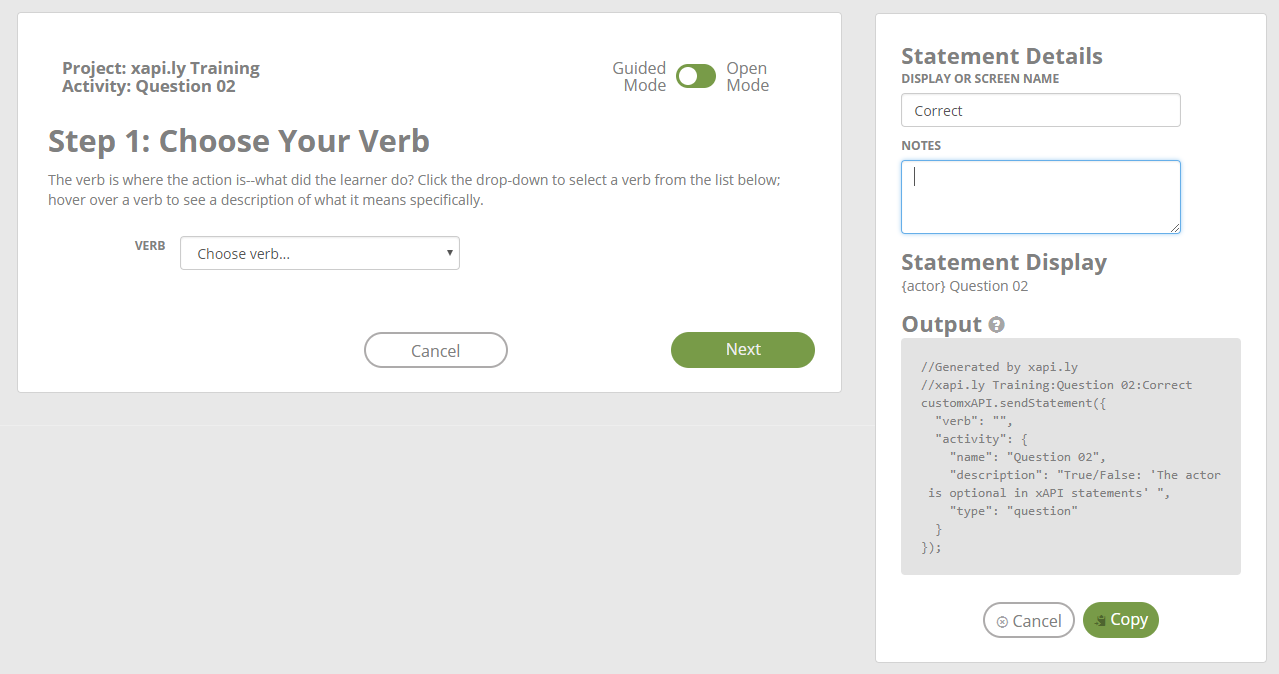
Guided Mode breaks things into
four steps and provides step-by-step validation while Open Mode puts it all on one screen. Both modes provide tooltips if you hover over the field names on the left.
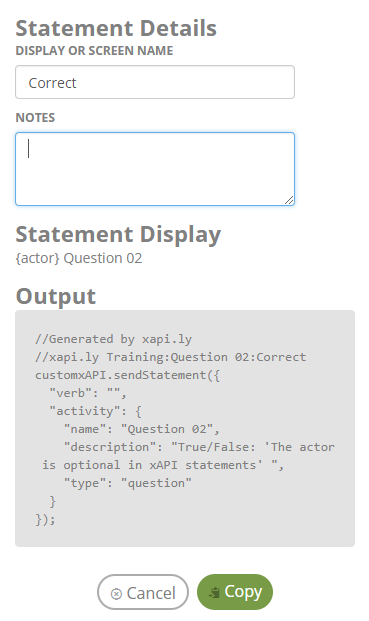
In the top right are optional details--these don't go into the xAPI statement but may prove useful for
you inside xapi.ly Statement Builder. Display or Screen Name is a name for your statement and will appear back in the statement list, while notes are for any more detailed information or reminders you wish to keep here.
Statement Display shows a simple human-language version of the statement (note at this point there's no verb yet) while Output displays the actual code being created, which you'll paste into Storyline.
-
Verb:Now that your object is complete, the only required field in the whole Create Statement sequence is the Verb. Select a verb from the list.
-
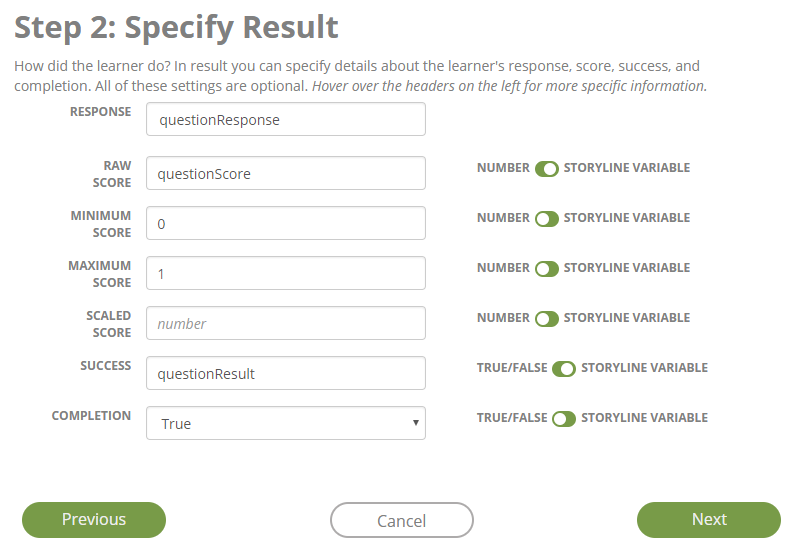
Result includes the learner's response and scoring information. You can specify any, all,
or none of these fields. When using Storyline variables, the xapi.ly Trigger will pull the value at the
time that it's called.
-
Response: The actual learner comment, input, or answer. If you're specifying response
here, xapi.ly Statement Builder expects the name of a Storyline variable.
-
Raw score: The learner's unscaled score; you can enter a number
or flip the toggle to enter the name of a Storyline variable.
-
Minimum score: The lowest possible score; you can enter a number
or flip the toggle to enter the name of a Storyline variable.
-
Maximum score: The highest possible score; you can enter a number
or flip the toggle to enter the name of a Storyline variable.
-
Scaled score: The score expressed as a percentage, from -1.0
(-100%) to 1.0 (100%); you can enter a number
or flip the toggle to enter the name of a Storyline variable.
-
Success: Whether the response was correct/successful or not; you
can choose true or false
or flip the toggle to enter the name of a Storyline variable.
-
Completion: Whether this completes the learner's interaction
with this activity or not; you can choose true or false
or flip the toggle to enter the name of a Storyline variable.
-
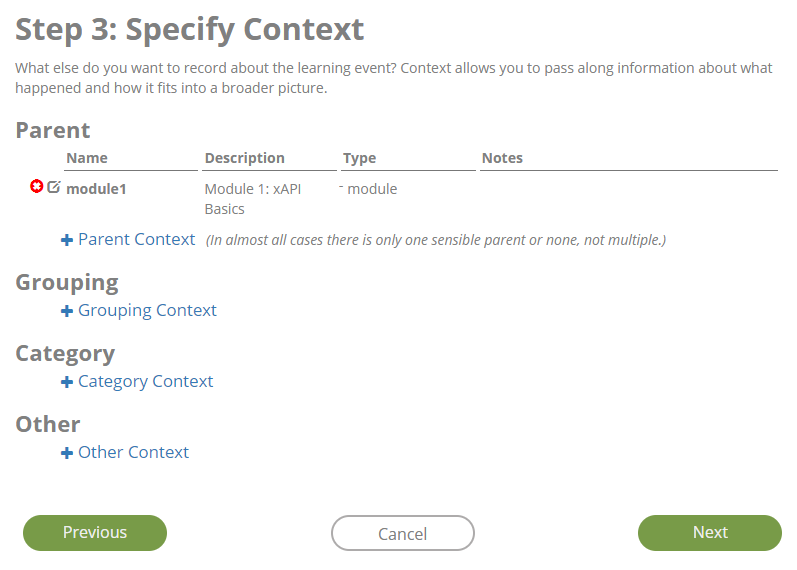
Context provides additional information about the statement and how it fits with other
activities. All context information is optional. For any of these, you'll create an activity similarly
to how you created the initial object.
-
Parent: A larger activity which this statement is directly a part of. Typically
an xAPI statement has only one Parent. This might be the course, the module within the course,
or a larger interaction the current interaction is part of.
-
Grouping: A larger activity which this statement is a part of,
but less directly than a Parent.
-
Category: Used to group similar things together, without implying it's
a part-whole relationship.
-
Other: Indicates a looser relationship than the other types of Context.
-
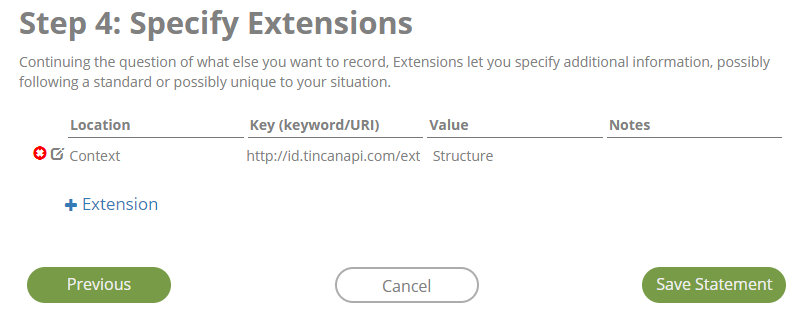
Extensions can fit in three possible locations in the xAPI statement.
- Activity extensions specify more information about the Object.
- Context extensions specify more information about the Context.
- Result extensions specify more information about the Result.
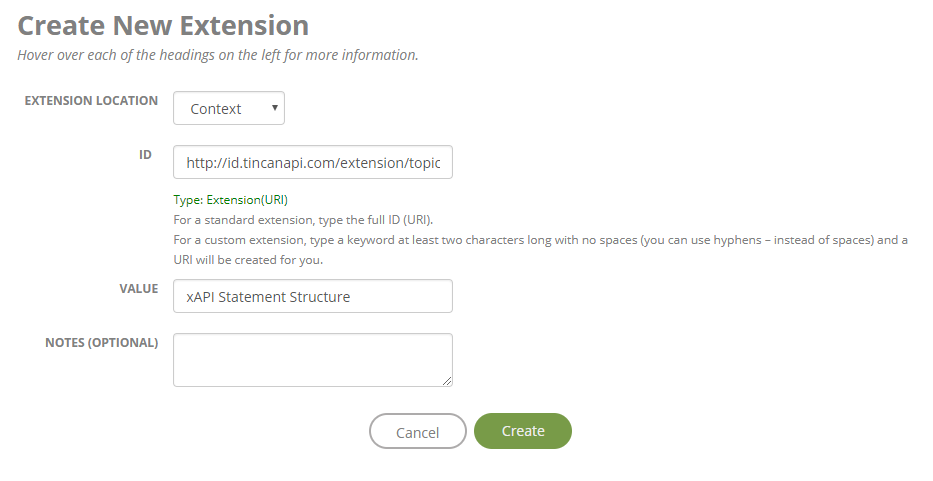
With Extensions, you can use a standard, defined extension by specifying its URI as the ID, or
you can simply type a keyword for the ID for your own tagging purposes. For standard extensions,
what the value should be is defined; if you're using a custom extension, you can enter whatever
value you wish.
-
If you're ready to put the trigger in Storyline now, click the Copy button on the lower right side of the page.
-
When you're finished, hit the Save Statement button on the
last screen of Guided Mode or the bottom of Open Mode. You'll return to the Build index; you can return
to this statement by clicking its display name or its edit icon there.